Send faxes.
From iPhone and iPad.
Send PDFs, images and scans through your FRITZ!Box. Faxbot takes you from the first draft to the transmission report.
For iPhone, iPad and FRITZ!Box
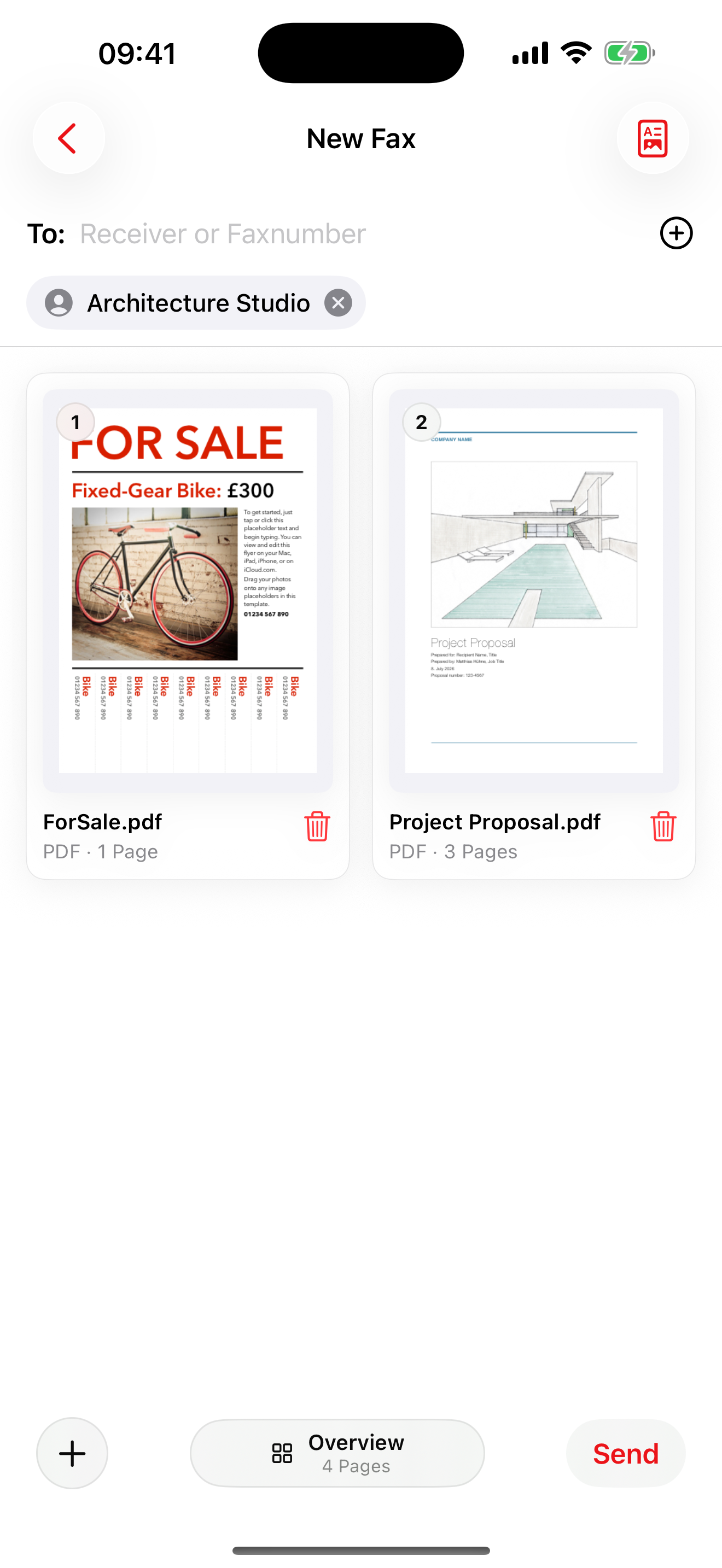
Assemble documents and recipients directly on your device.
AT A GLANCE
The essential steps.
Add documents
Import PDFs, images or scans and combine several pages if needed.
Prepare the fax
Choose a recipient from contacts, review pages and add a cover sheet.
Send and review
Send through your FRITZ!Box and find the status and report in history.
DRAFTS & HISTORY
Everything in view.
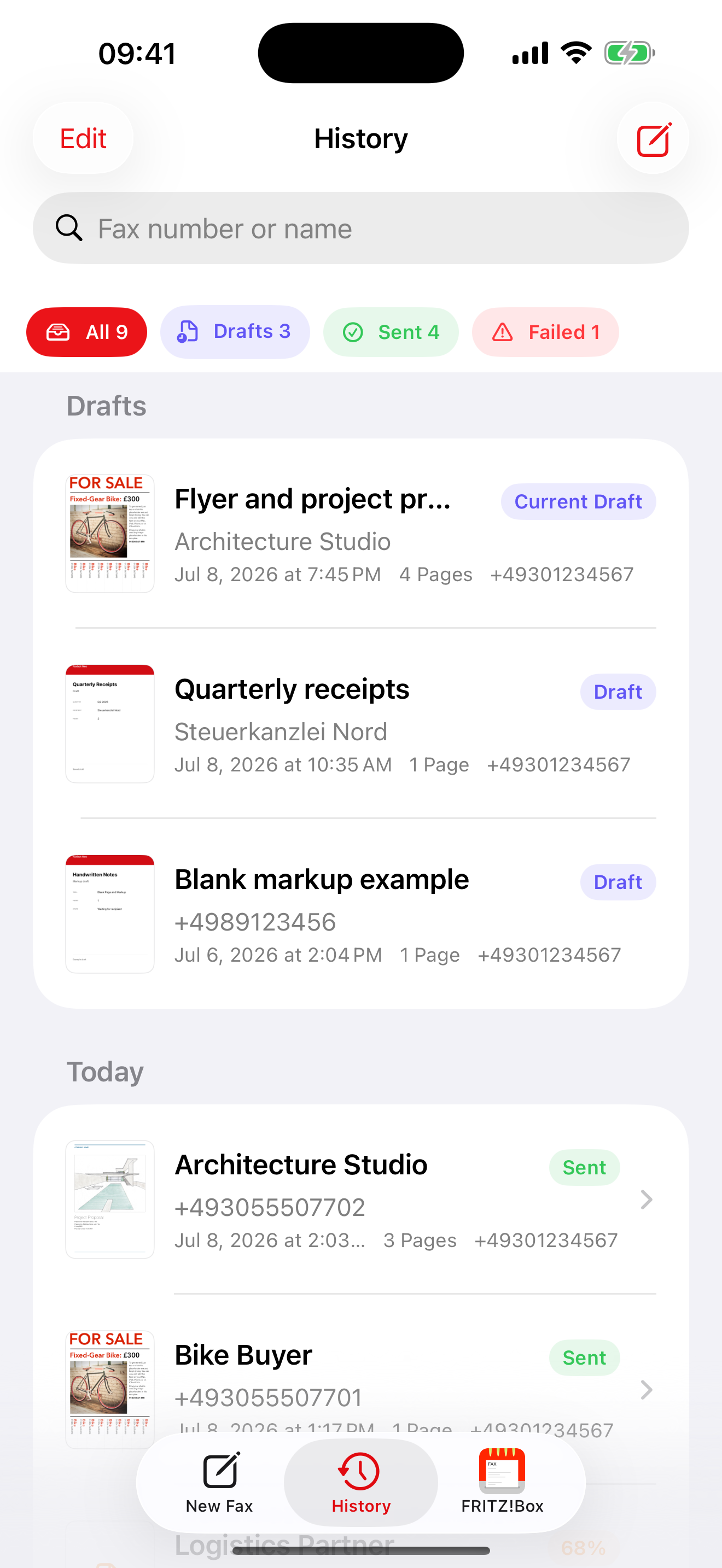
New faxes are saved as drafts automatically. Sent, failed and pending faxes remain available in history.
EDIT DOCUMENTS
Prepare every page.
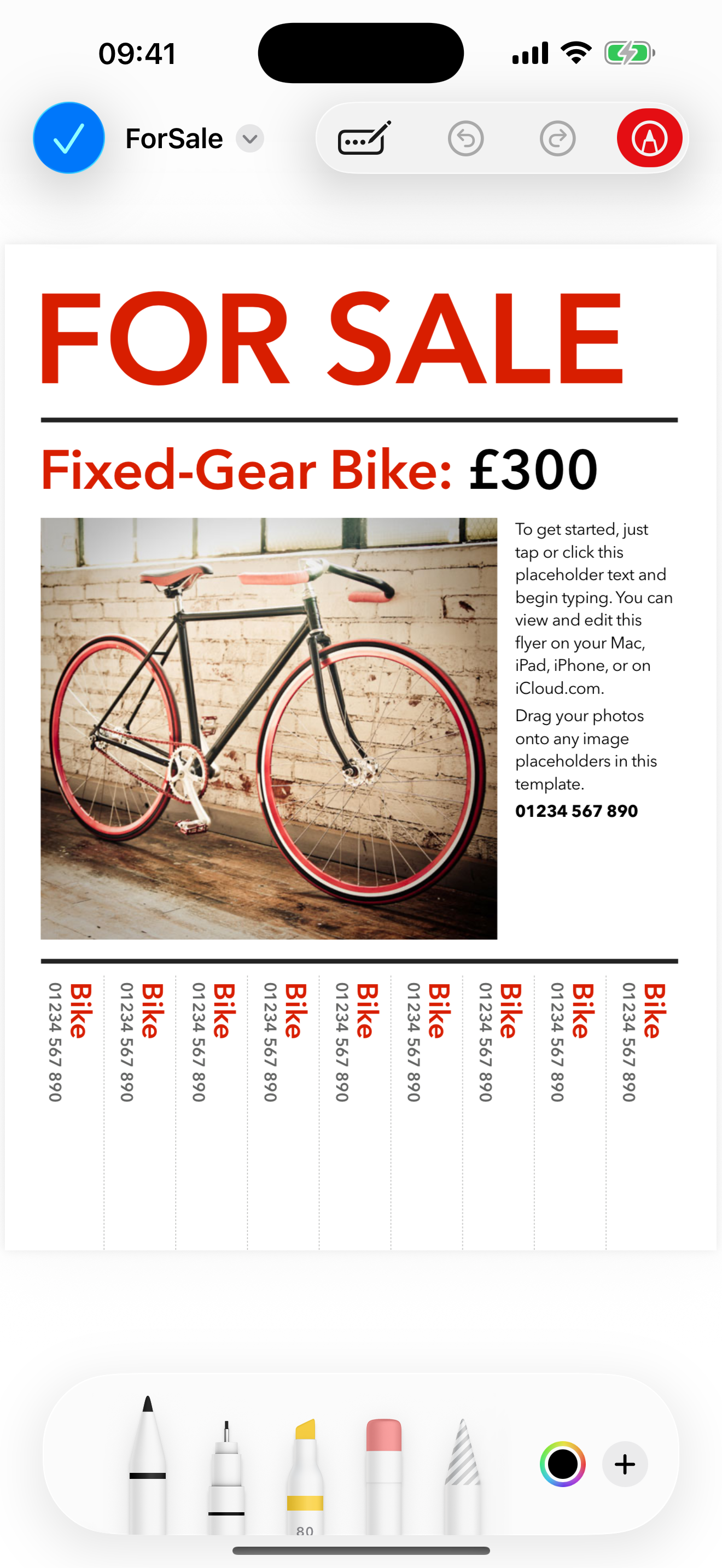
Reorder or remove pages and add marks or annotations to PDFs before sending.
COVER SHEETS
Add a message.
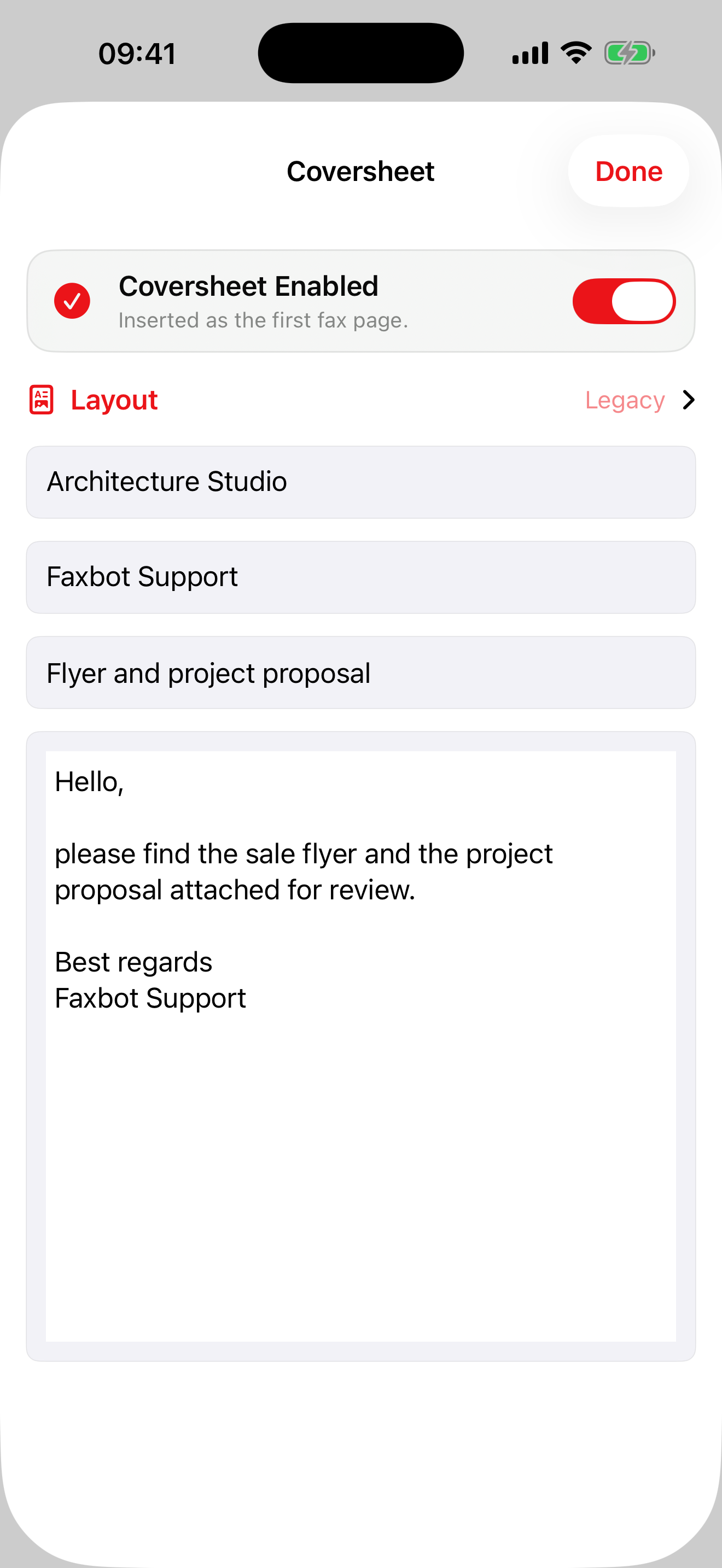
A cover sheet can include a subject, message and, if desired, your own logo.
TRANSMISSION REPORTS
Review status and details.
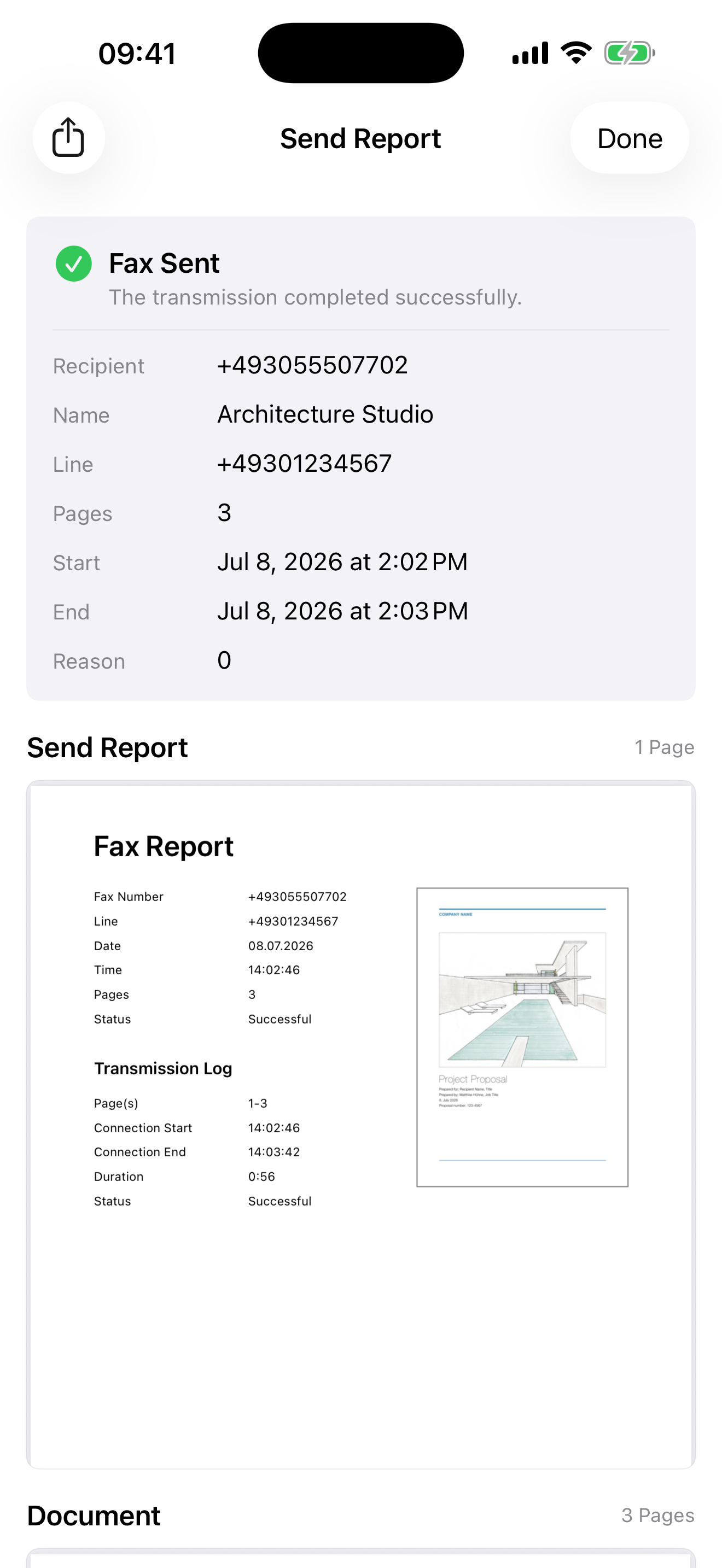
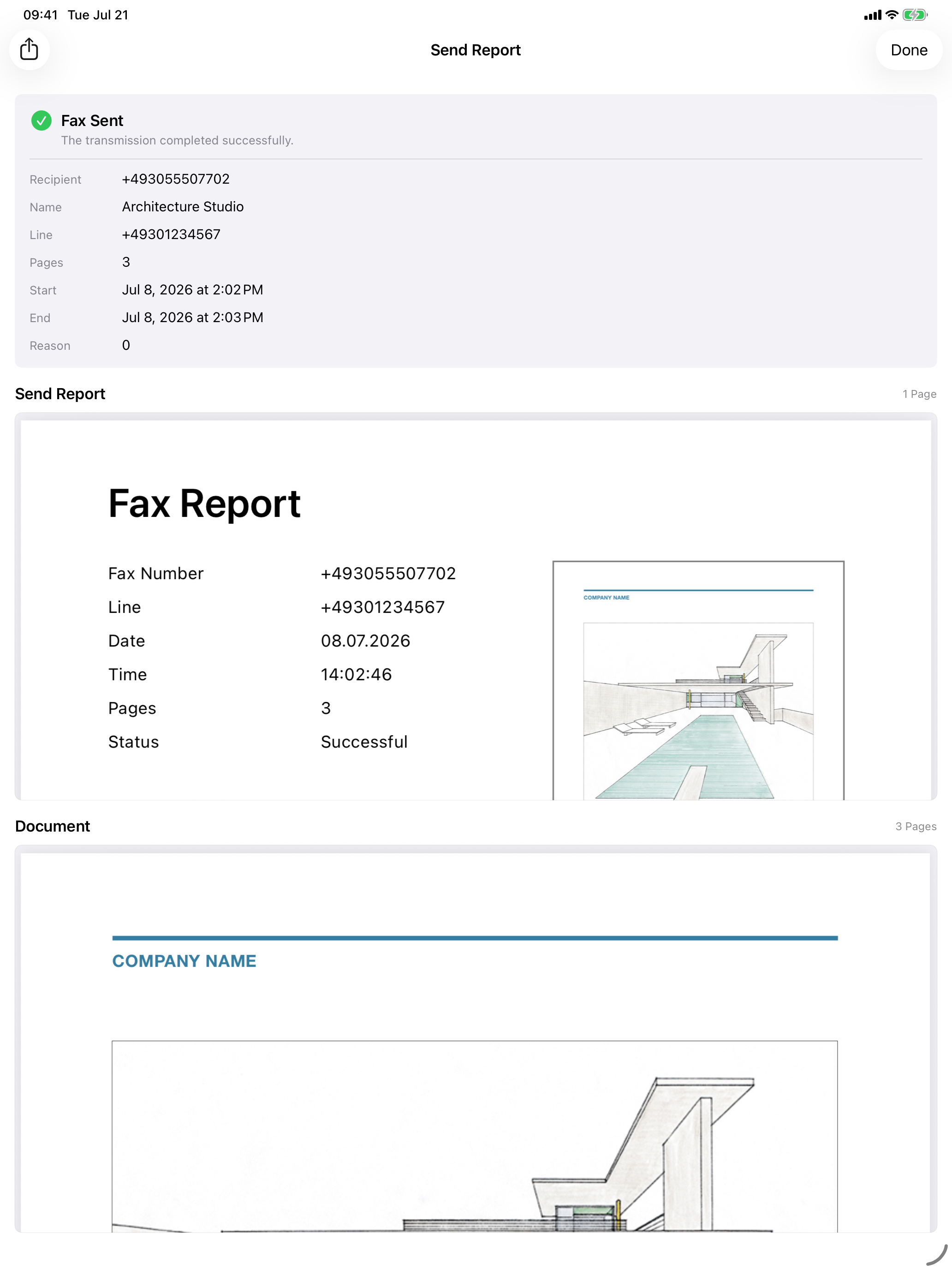
After sending, Faxbot shows the status and transmission details. The report stays with the sent document in history.
IPHONE & IPAD
Designed for both screens.
Faxbot adapts to iPhone and iPad. Documents and reports remain clear on the larger display.
BEFORE INSTALLING
Frequently asked questions.
Faxbot for iOS
Faxbot is available on the App Store for iPhone and iPad.

FAXBOT FOR MAC
Fax from your Mac, too.
Send documents through your FRITZ!Box from familiar Mac workflows.